
Finding your way around the editor
10 min readASA DevKit as of November 2026 (UE 5.8.1); ASE where noted
The DevKit looks overwhelming the first time: it holds the whole game. You only need six parts of it to make mods, and this page shows you those. It takes about half an hour with the kit open beside it.
- You'll learn: where vanilla content and your mod live, how to read and change settings, how to open a Blueprint, save safely, find what uses what, and read the log
- Time: about 30 minutes
- Level: complete beginner
- You'll need: the DevKit installed and fully loaded (Installing and launching the DevKit)
The six parts you'll use
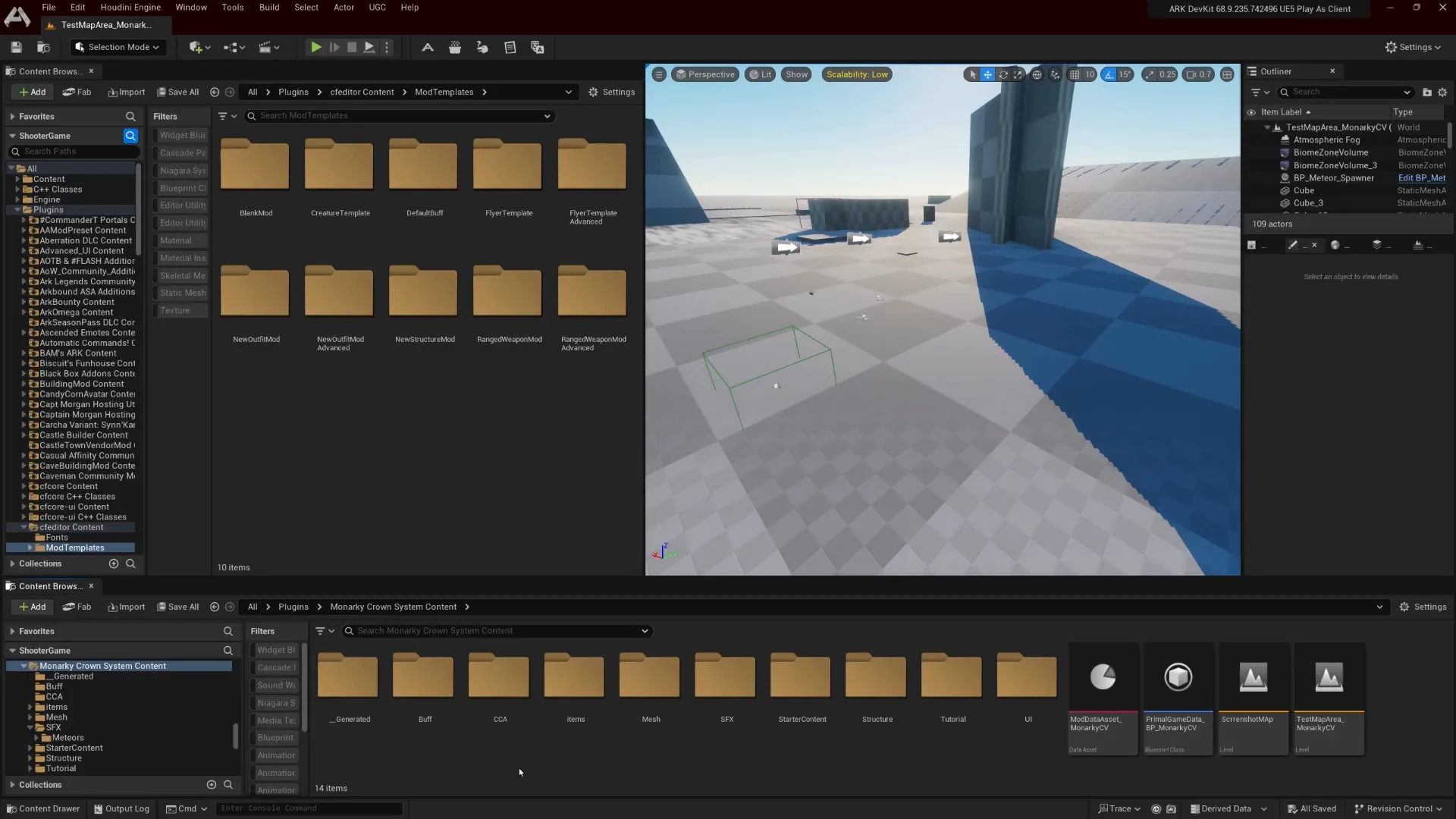
| Part | Where | What it's for |
|---|---|---|
| Content Browser | Bottom, or Ctrl+Space | Every asset: vanilla, DLC and your mod. |
| Details panel | Right | The settings of whatever is selected. |
| Blueprint editor | Opens when you double-click a Blueprint | Settings, components and logic of one class. |
| Reference Viewer and Size Map | Right-click an asset | What uses what, and how much it pulls in. |
| Output Log | Window → Output Log | What the editor and your test are really doing. |
| Toolbar and menus | Top | Play, the UGC menu (Create Mod, Share Mod), the cooking-pot local cook, the documentation icon. |
Your kit's version is shown at the top right of the window. Quote it when you ask for help.
Tip
If you've dragged panels into a mess, Window → Load Layout → Default Editor Layout puts everything back.
The Content Browser
Ctrl+Space pops up the content drawer. Click Dock in Layout to keep it open as a panel. Window → Content Browser opens up to four, which helps when you drag assets between folders.

Where things are
| Folder in the browser | What's in it |
|---|---|
Content |
The base game, also called /Game. Look but never change. |
Content/PrimalEarth/Dinos/<Species> |
Each creature: its character Blueprint, AI controller, animation Blueprint, skeleton and physics asset. |
Content/PrimalEarth/CoreBlueprints |
The game's building blocks: Weapons, Items, Engrams, Buffs, Inventories, ItemLootSets, DamageTypes, Projectiles. |
Content/PrimalEarth/Structures |
Vanilla structures, from the storage box up. |
Content/ASA and the map-named folders |
Content added for ASA, and each DLC map's own content. |
| Top-level folders named after maps | Several DLC maps are shipped as plugins, so they show as their own folders. |
| A folder named after your mod | Your mod. On disk it's <DevKit>\Projects\ShooterGame\Mods\<YourMod>, and its assets load from /<YourMod>/. |
Only your mod's folder ships with your mod. A change in Content stays on your PC and quietly changes every later
test. To change vanilla behavior, make a child instead: Changing vanilla content.
Searching
- Select a folder, then type in the search box. The search covers that folder and everything under it. Select
Contentto search the whole game. - Search by the asset's file name.
Rex_Character_BPfinds the Rex; "Tyrannosaurus" doesn't. The database shows the class name for every vanilla creature and item. - Filters narrow by type: Blueprint Class, Data Asset, Material, Static Mesh. The Filters button adds them.
- Ctrl+P opens a quick "open asset" search from anywhere in the editor.
The view settings
The browser's Settings menu has switches for what it shows. Two matter:
- Show Engine Content is off by default. Engine content is Unreal's own basics, like simple shapes and default materials. Turn it on when a tutorial uses the engine's cube.
- Show Plugin Content is on by default. Leave it on. Your mod and several DLC maps are plugins, and they vanish without it.
The right-click menu
On an asset, these are the entries I use all the time:
- Create Child Blueprint Class: the start of almost every mod. See Unreal words.
- Copy Reference: the asset's full path, for
cheat giveitem, a server admin or a help request. - Reference Viewer and Size Map: below.
- Give on an item, and Spawn Dino on a creature, while you're in Play In Editor.
The Details panel
Select something and the Details panel shows its settings, grouped in categories you can fold.
- Search by name. Type part of the setting's name in the box at the top: "damage", "stack", "engram". The panel hides everything else.
- Use the words you see, not the code name. The editor splits names apart:
MeleeDamageAmountshows as Melee Damage Amount. If a code name from a guide finds nothing, try it as separate words. - The reset arrow shows what changed. A small curved arrow beside a setting means its value differs from the parent's. Click it to put the parent's value back.
- Show only what changed. The panel's settings menu has Show Only Modified Properties. On a child, it lists exactly what the child changes. It's the quickest way to compare a vanilla variant with its base.
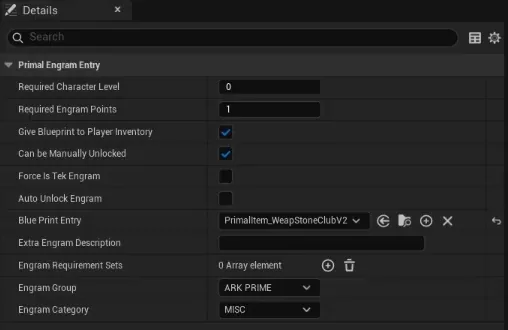
Those two are the heart of this guide's method: start from a vanilla asset, make a child, and compare.
Opening a Blueprint
Double-click a Blueprint to open it. A new child with no logic may open as a short settings-only view. The Open Full Blueprint Editor link at the top gives you the full editor.
The full editor has three things you'll use:
| Where | What it shows | When you need it |
|---|---|---|
| Class Defaults button on the toolbar | The class's starting values in the Details panel, including its sparse data | Most of the time. Almost every how-to step in this guide happens here. |
| Components panel, top left | The parts the class is built from: mesh, inventory, status | Changing a mesh, a collision box, an inherited component's settings. |
| Event Graph and functions | The logic, as nodes and wires | Making it do something new. |
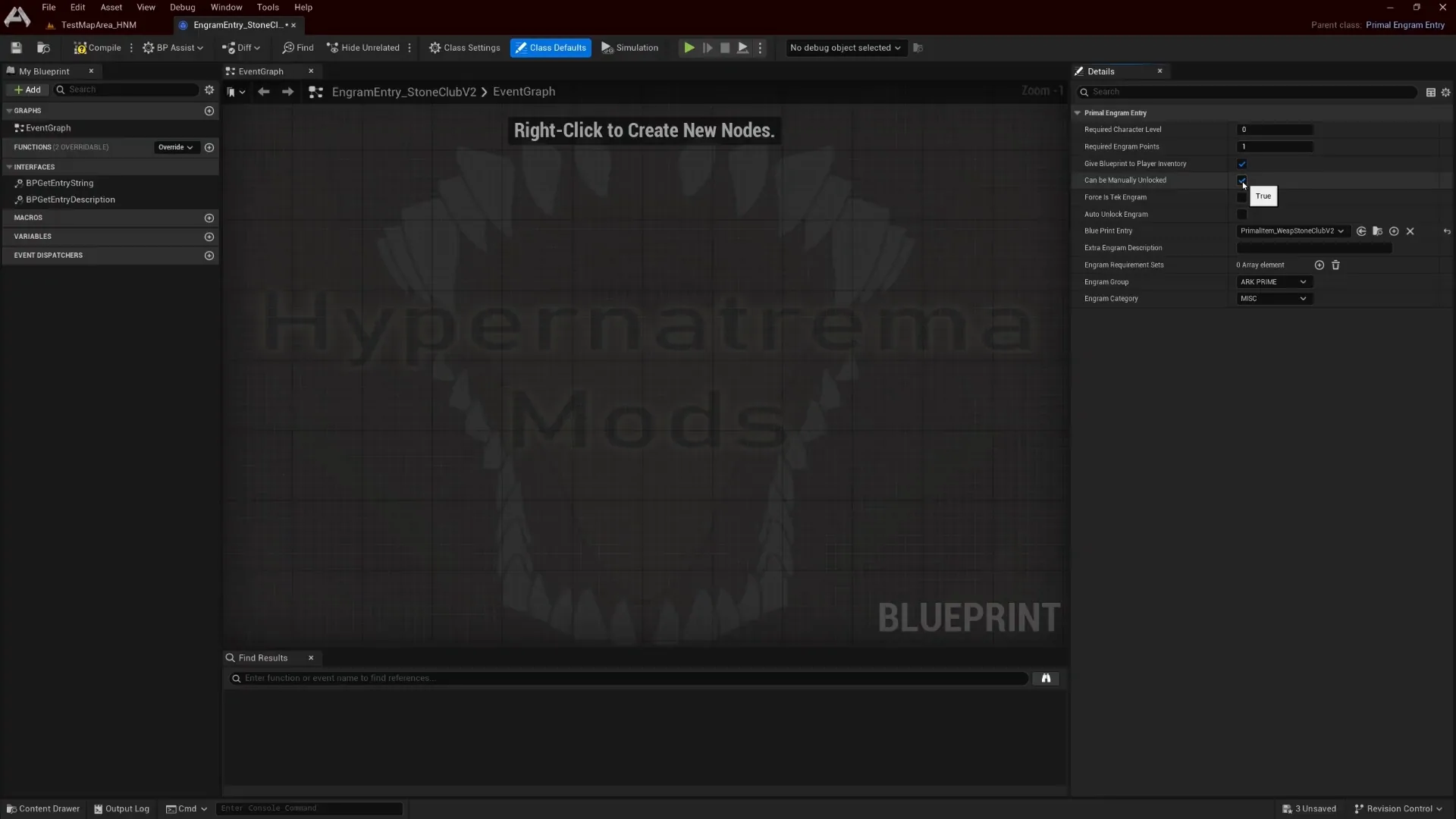
A few habits that save trouble:
- Compile after every change, class defaults included, or new spawns don't get it (lessons §2). The Compile button's icon shows the state: a green tick is good, a question mark needs compiling, a red cross is an error.
- Read the warnings, not just the errors. A renamed pin only warns, and then keeps an old default.
- Select an inherited component to change it on your child. Some vanilla parents add components a child can't edit; the structure page has the workarounds.
- Class Settings on the toolbar shows the parent class.
- Find in Blueprints (Ctrl+Shift+F) searches every graph for a node, variable or function name.
The first Blueprint you open in a session is slow, because it loads much of the game in the background.
Saving
- Ctrl+S saves the asset you're in. Ctrl+Shift+S saves everything. File → Save All does the same.
- An asterisk means unsaved. It shows on an editor tab and on the asset's thumbnail. The status bar at the bottom counts unsaved assets; click it for the list.
- Untick everything outside your mod folder when the save dialog lists assets. Opening a vanilla asset can mark it changed, and saving it changes your base game.
- Stop Play In Editor before you save an asset whose actor is in the running level. That's a known crash.
- Close Blueprint editors before you switch maps. Switching with them open is another known crash.
The editor also autosaves to <DevKit>\Projects\ShooterGame\Saved\Autosaves. After a crash, that folder can save
your work: see Reading a crash report. Keep your own backups too, outside your mod's Content folder.
Finding references
The Reference Viewer
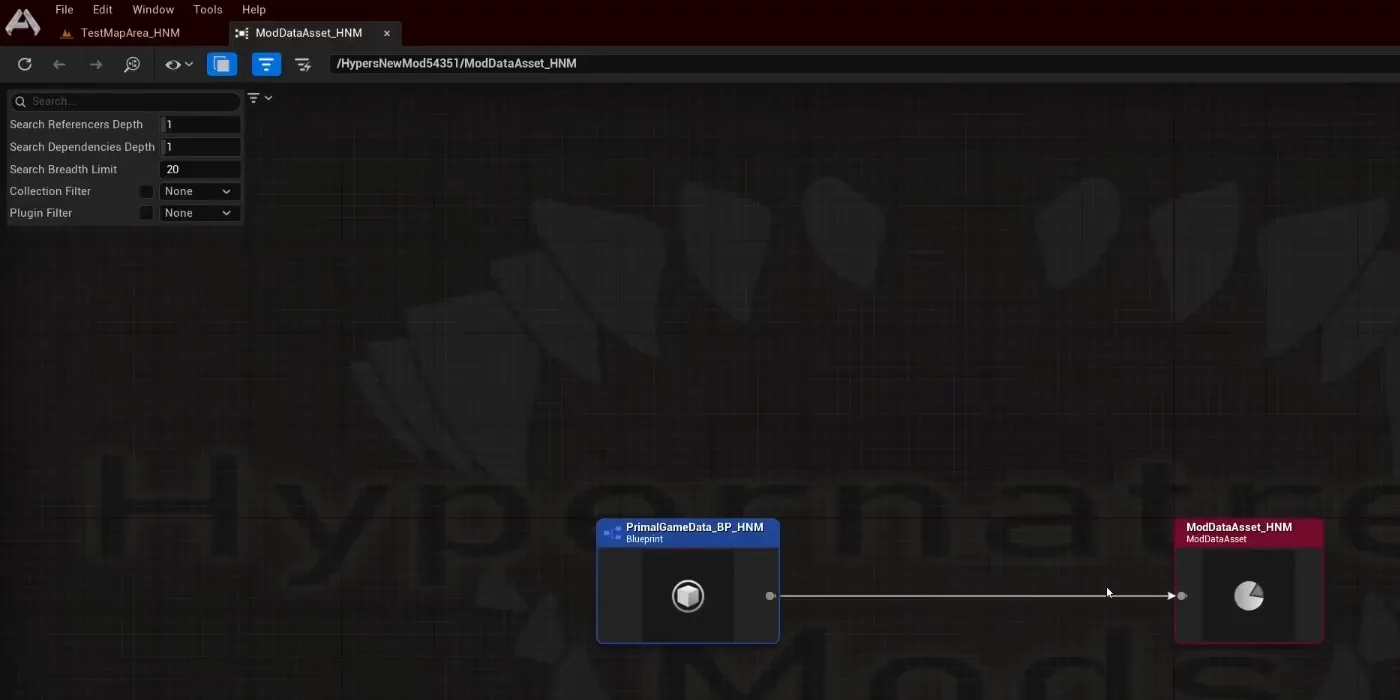
Right-click an asset → Reference Viewer. It draws a graph:
- Left: what refers to this asset.
- Right: what this asset refers to.
Two checks I do with it all the time:
- Is my registration linked? Open it on your PrimalGameData. Your Mod Data Asset should hang off it. That's quicker than opening the slow PrimalGameData (How ARK finds your content).
- Does anything point outside my mod? The right side should hold only your folder and vanilla content. A reference into another mod cooks "successfully" and breaks live (When a cook or upload fails).
The Size Map
Right-click an asset → Size Map. It draws everything the asset pulls in as boxes sized by memory or disk.
Use it when an asset is unexpectedly heavy. One hard reference to a vanilla creature drags in its meshes, animations and sounds. The fix is usually a soft reference.
The Output Log
Window → Output Log shows the editor's log as it's written: the same text as
<DevKit>\Projects\ShooterGame\Saved\Logs\ShooterGame.log. The DevKit rarely pops up an error. It writes it here.
- Search for your mod's folder name first. A fresh kit prints hundreds of harmless vanilla warnings.
- Clear it before you press Play, so what you read belongs to this run.
- Filter by category, such as
LogBlueprintfor compile errors orLogBlueprintUserMessagesfor your own prints. - The Message Log (Window → Message Log) collects Play In Editor errors with links that jump to the node.
- The box at the bottom of the Output Log runs console commands, such as
stat fps.
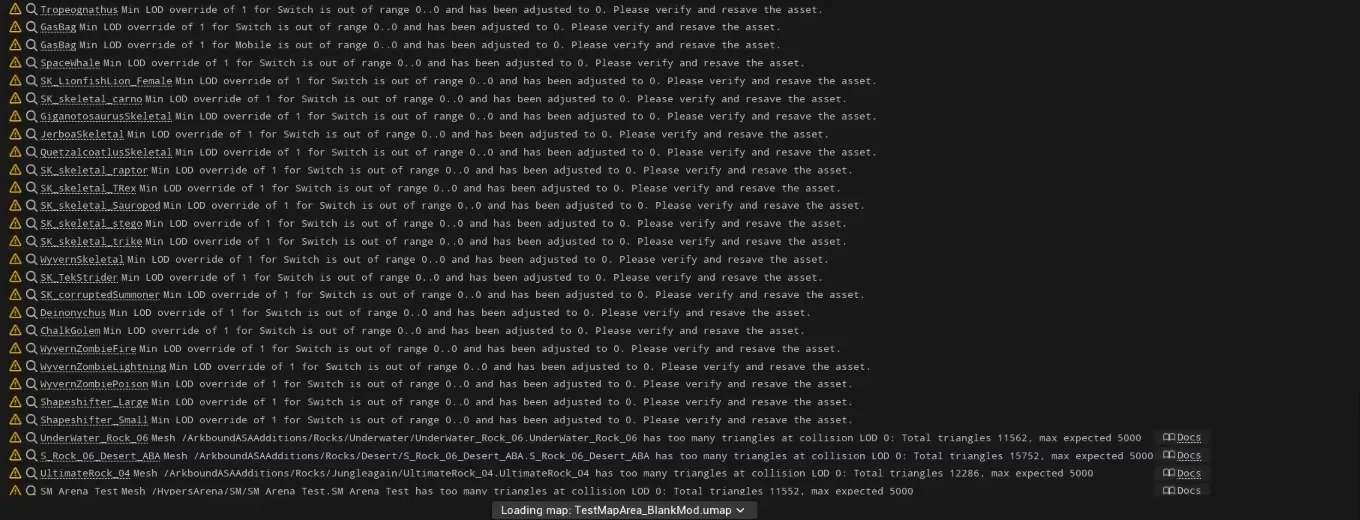
Where every log lives, and the noise to skip: Reading ARK's logs.
The toolbar and the UGC menu
The toolbar under the menus holds Play and the buttons you use while testing. The UGC menu is where a mod starts: Create Mod makes one, and Share Mod uploads it to CurseForge.

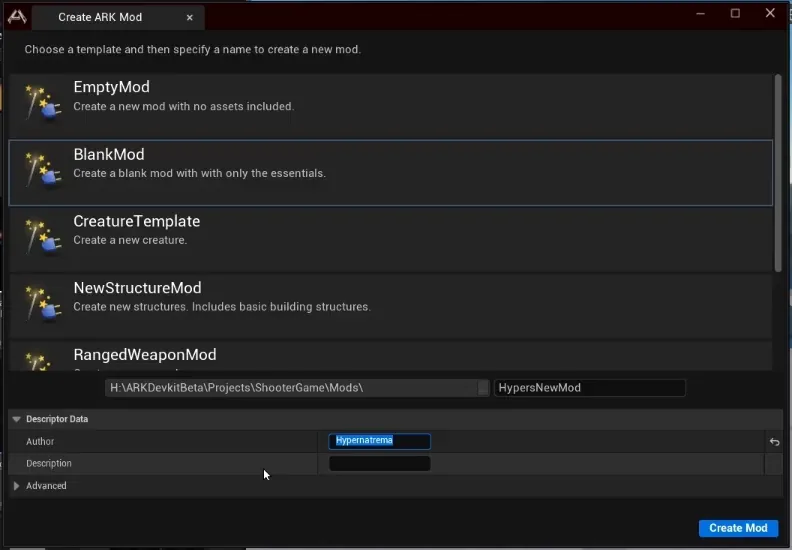
Create Mod opens a window of templates. I pick BlankMod almost every time. The name you type becomes the mod's folder name, which never changes, so keep it unique. Your first mod walks through every field.
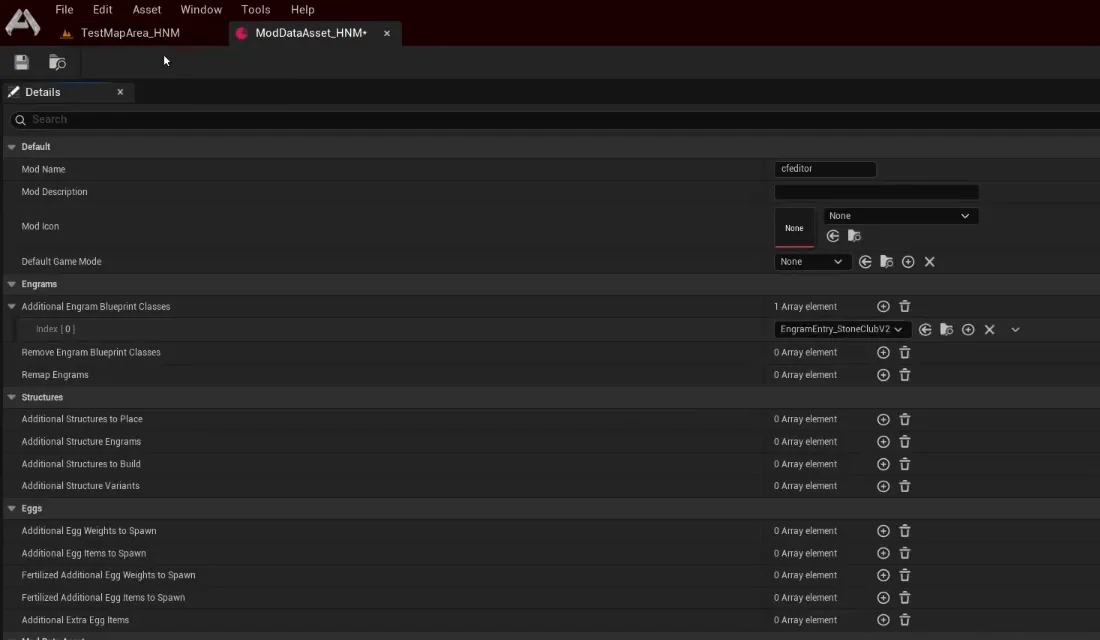
A blank mod comes with a Mod Data Asset (the pink one) and a Primal Game Data (the blue one). The Mod Data Asset is where you list what your mod adds: How ARK finds your content.
Moving around the viewport
- Hold the right mouse button and use W A S D to fly. The scroll wheel changes the speed.
- Select an actor and press F to focus on it.
- Window → World Settings holds the map's Primal Game Data Override. It decides which mod loads when you press Play; Your first mod sets it up.
Common mistakes
My mod's folder isn't in the Content Browser
Show Plugin Content is off in the browser's settings. Turn it back on. If it's still missing, the mod was never created; run UGC → Create Mod again.
Search finds nothing, but I know the asset exists
You're searching inside the wrong folder. Select Content, or your mod's root, and search again. Also check the
Filters: a leftover type filter hides everything else.
I changed a vanilla asset by accident
Don't save it. If you already did, verify the kit in the Epic launcher to put the original back. Then make a child of it in your own folder instead.
Check it worked
You're ready for your first mod when you can:
- find
WeapStoneClubinContent/PrimalEarth/CoreBlueprints/Weaponsand open its Class Defaults; - search its Details for "melee" and find Melee Damage Amount;
- open the Reference Viewer on it and say what it refers to;
- clear the Output Log, press Play, stop, and find the first line that isn't startup noise.
Watch
- How to Make an ARK ASA Mod (Complete Beginner Guide) (my video, 5:28: the content drawer, docking, several browsers and World Settings; 12:25: the Reference Viewer on your registration pair).
- ASA Modding | Different ways to SETUP your DEVKIT TABS (SlayerXtreme, 1:13: arranging the layout; 3:57: docking the browser to a sidebar; 5:27: resetting the layout).
- ASA Modding | How to get the ARK DevKit | Episode 1 (SlayerXtreme, 7:58: a first look through the game's content in the browser).
- Modding in ASA: Getting the ARK Devkit (Mist3r Trixt3r, 1:55: moving around the viewport).
Go deeper
- Unreal words you'll meet: every term on this page, explained.
- Your first mod: where you use all of this.
- Reading ARK's logs: the Output Log in depth.
- What each asset offers: what the settings in the Details panel do, class by class.
Sources
- DevKit files, read on 2026-11-06 (UE 5.8.1): the content folder layout under
Projects\ShooterGame\ContentandPlugins(the DLC map plugins and thecfeditormod tools), the paths ofWeapStoneClub,PrimalItem_WeaponStoneClub,EngramEntry_StoneClubandRex_Character_BP, theSaved\Autosavesfolder, and the engine's default Content Browser settings (DisplayEngineFolder=False,DisplayPluginFolders=TrueinEngine\Config\BaseEditorSettings.ini). - My beginner guide video, 7TwjI7TCE_w (Sept 2025, UE 5.5 DevKit). The stills on this page come from it.
- My own crash reports for the two save and map-switch crashes; see lessons §3.
- Creators' videos: SlayerXtreme, Episodes 1 and 8 (Dec 2023, Feb 2024); Mist3r Trixt3r, "Getting the ARK Devkit" (Oct 2023); and Mist3r Trixt3r's spawn commands video for Give in the browser (tutorials §8).
- Standard Unreal Engine 5 editor behavior, not checked on the 5.8.1 kit with the editor open: the shortcuts (Ctrl+P, Ctrl+Shift+F, F), the reset arrow's look, the compile button's icons, the data-only Blueprint view, Show Only Modified Properties and the unsaved-asset counter. Menu wording can differ slightly between engine versions.
- Filtering the Output Log to your own prints: modders on the community Discord (2024-06), as cited in Reading ARK's logs.
Community knowledge from the ARK Modding Community Discord (discussions from June 2024), found with Overseer.
Where this page's information comes from
Applies to: ASA DevKit as of November 2026 (UE 5.8.1); ASE where noted
the DevKit's own folders and settings, my beginner guide video and creators' videos (see Sources)
Look something up in creatures
1,551 rows, each with its own page. Search by name or any detail, or start from a category.